Tracing and blocking webshell scanners with Cloudflare analytics and WAF rules
My static site returned thousands of 404s for PHP files it never had. How I traced the requests to scanner VMs with Cloudflare analytics, and the WAF rules that stop them.
This is a static site. There is no PHP on it and nothing that could run PHP. So when I opened Cloudflare analytics and saw /1.php near the top of my most requested pages, I sat up a bit.
It wasn’t the only one. Right under the homepage and the favicon were four file names I have never written:
/this_is_a_new_hello_world.php/txets.php/wp-content/plugins/hellopress/wp_filemanager.php/1.php
Each one had over a hundred requests in a few days, and the country chart said most of my visitors were in South Korea. Which was news to me. I have never written a single word about K-drama or K-pop.

Top paths and top countries for the last few days. Tap to enlarge.
Here is how I worked out what was going on, and what I changed in Cloudflare so it stops showing up.
Step 1: check whether anything was actually served
A file called 1.php sitting on a server is usually a web shell, a tiny script that lets someone run commands from their browser. wp_filemanager.php inside a plugin folder is the same thing wearing a WordPress costume. So the first thing I wanted to know was whether any of these requests got a real response.
The status code panel settled it. The biggest group was 404. The second biggest was 301, which is my redirect from http to https and from the bare domain to www. So each PHP request got bounced once and then told the file doesn’t exist.
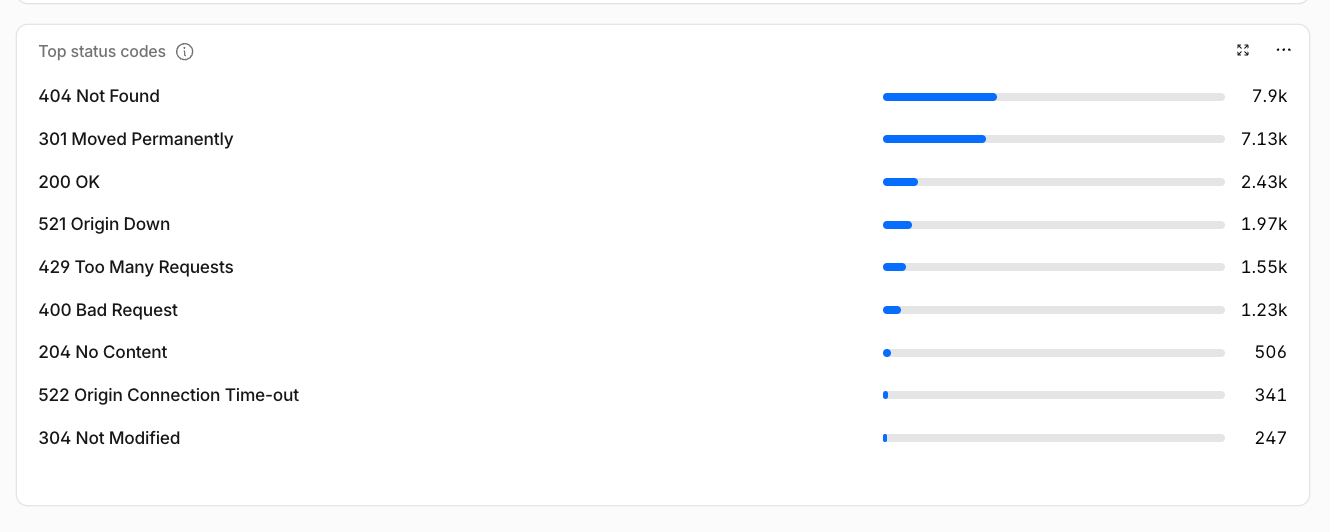
Nothing was served. The files don’t exist, and even if they did, a static site has nothing that could run them. Good. Now it was a curiosity problem instead of an incident.
Step 2: find out who is sending the requests
The client IP panel listed nine addresses behind most of the traffic. I ran them through whois and an IP geolocation lookup.
Seven of the nine belong to Microsoft Azure: four in Seoul, one in Osaka, one in Hong Kong, one in Pune. Line that up with the country chart and it all clicks. South Korea, Japan, Hong Kong, and India were rented VMs, not readers. So much for my Korean fan base. The other two addresses were mine.
So the “audience” in the top countries panel was mostly a scanner fleet.
Step 3: understand what the scanners want
These paths are not about my site. They come from a list that gets tried against every domain the scanner can find. The goal is to find web shells that someone else already planted on a server that was hacked earlier. If one of those files answers, the scanner has found a box it can use without doing any of the hacking itself.
That explains the weird names. this_is_a_new_hello_world.php and txets.php aren’t bugs in any product. They are file names that other people’s malware used, and the scanner is checking whether they are still there. There is no WordPress plugin called hellopress. It only exists in scanner logs. Reports on AbuseIPDB show the same four names being requested from many addresses over many months.
A few other entries made sense once I knew what I was looking at:
/cdn-cgi/rumis Cloudflare’s own Web Analytics beacon. Every real page view sends one. That’s my site reporting on itself, not an attack.- Hosts like
kohar.space:8080,:8443, and:8880were the same scanners trying the extra ports Cloudflare proxies by default. - The 521 and 522 errors came from another subdomain on the same zone, where an origin server had gone quiet. Unrelated to the bots, but I would not have noticed without this.
Step 4: see what Cloudflare already blocks
Before adding anything, I filtered security analytics by action to see what the free plan was already catching. The answer: three requests in two days.
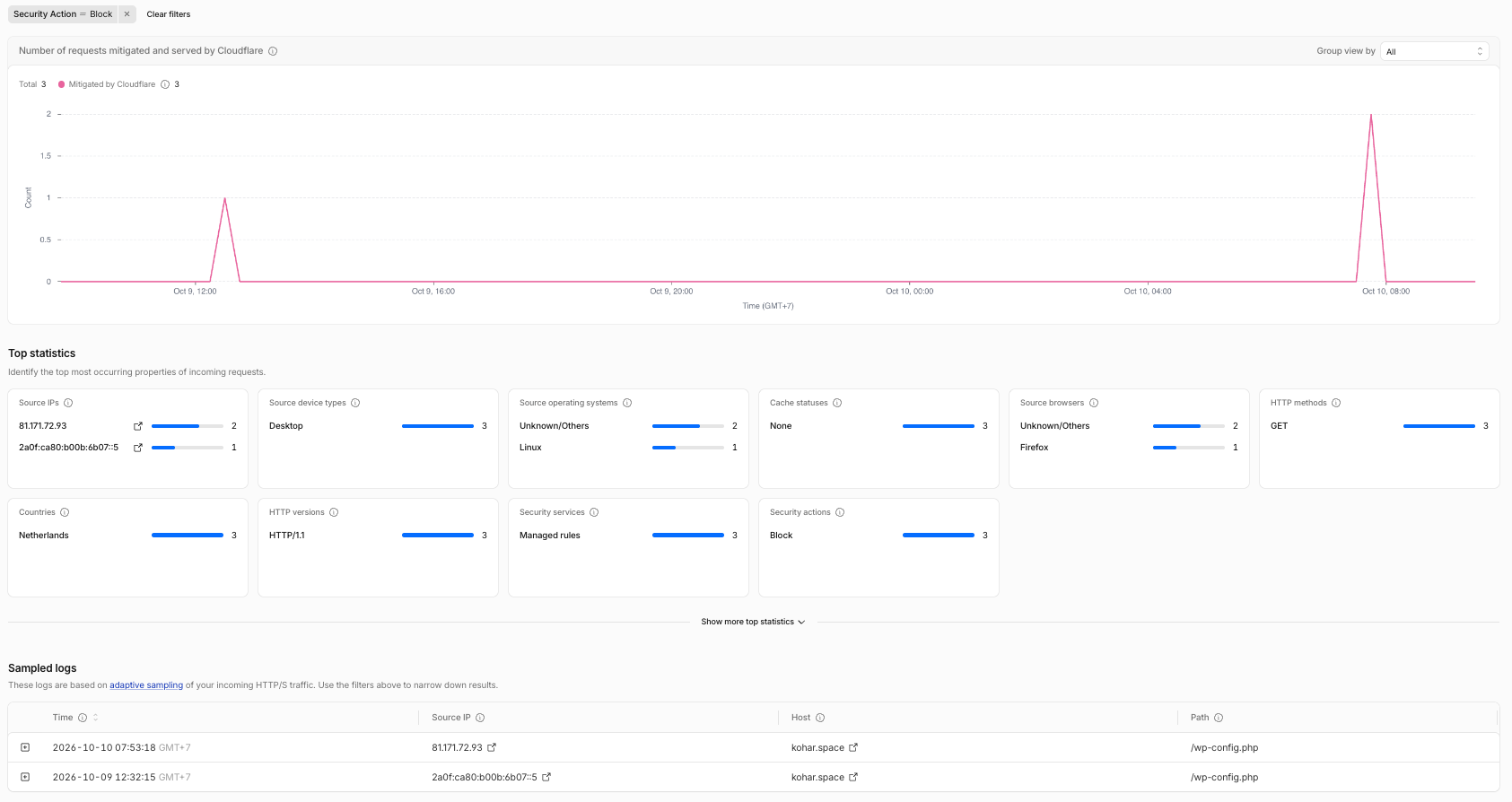
Three blocked requests, all for /wp-config.php, all caught by
the free managed ruleset.
All three were for /wp-config.php, the WordPress file that holds database passwords. The managed rules know that one. Everything else, thousands of probes for web shells, went straight through and got a polite 404.
On a static site that is not dangerous, just annoying. Every one of those requests counts as a visit in analytics, skews the country chart, and still costs a request for nothing.
Step 5: block them with rules scoped to the static site
Everything below lives under Security > Security rules in the Cloudflare dashboard (older layout: Security > WAF).
One detail matters more than the rules themselves. This zone also serves other subdomains that are real applications. A rule written for the blog must not touch them, so every rule is limited to the two hostnames the static site answers on.
Rule 1: block PHP and WordPress probes. Create a custom rule with this expression and the action set to Block:
(http.host in {"kohar.space" "www.kohar.space"}) and (
  ends_with(lower(http.request.uri.path), ".php") or
  http.request.uri.path contains "/wp-content/" or
  http.request.uri.path contains "/wp-admin/" or
  http.request.uri.path contains "/wp-includes/" or
  http.request.uri.path contains "/.env" or
  http.request.uri.path contains "/.git"
)
Rule 2: close the extra ports. The site only needs 80 and 443. Another custom rule, action Block:
(http.host in {"kohar.space" "www.kohar.space"}) and
not (cf.edge.server_port in {80 443})
Bot Fight Mode. A switch under Security > Settings. It challenges traffic Cloudflare already recognises as automated, and it is free.
Rate limiting. One rule on the same two hosts: 100 requests per 10 seconds from one IP, block for 10 seconds. A real page load here is nowhere near that.
I did not block the Azure addresses themselves. Scanners rent VMs like everyone else, and next month the list will be different. Blocking by what they ask for lasts longer than blocking by where they come from.
What I learned
Three things I am keeping from this:
- Don’t trust the country panel until you check who is sending the traffic. A 404 is harmless to the server, but it still counts as a visit. My “readers” in South Korea were rented VMs.
- Scanners are looking for other people’s web shells, not attacking you specifically. The odd file names are leftovers from malware on servers that were hacked earlier. The bots check every domain for them.
- Filter security analytics by Action = Block. If that number is nearly empty while your 404s are huge, the free managed rules only catch the obvious stuff. A couple of custom rules, scoped to the right hosts, do the rest.